SurferCloud Blog SurferCloud Blog
  • HOME
  • NEWS
    • Latest Events
    • Product Updates
    • Service announcement
  • TUTORIAL
  • COMPARISONS
  • INDUSTRY INFORMATION
  • Telegram Group
  • Affiliates
  • English
    • 中文 (中国)
    • English
SurferCloud Blog SurferCloud Blog
  • HOME
  • NEWS
    • Latest Events
    • Product Updates
    • Service announcement
  • TUTORIAL
  • COMPARISONS
  • INDUSTRY INFORMATION
  • Telegram Group
  • Affiliates
  • English
    • 中文 (中国)
    • English
  • banner shape
  • banner shape
  • banner shape
  • banner shape
  • plus icon
  • plus icon

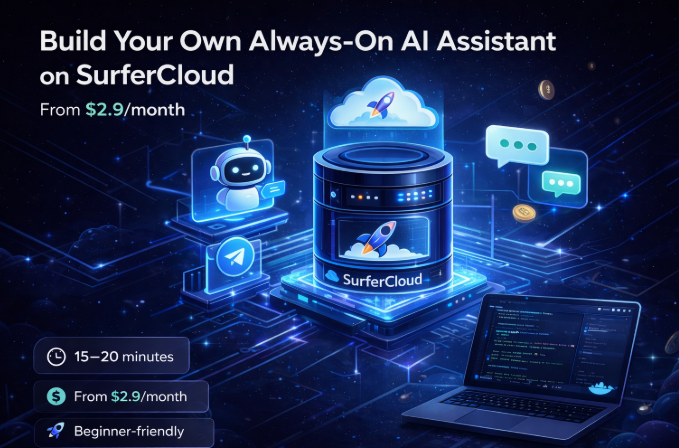
Build Your Own Always-On AI Assistant on SurferCloud (From $2.9/month)

January 26, 2026
3 minutes
TUTORIAL
28 Views

Run a private, 24/7 AI assistant on a SurferCloud VPS — no Mac mini required

⏱️ 15–20 minutes
💰 From $2.9/month
🧑‍💻 Beginner-friendly
🌍 Global-ready

Overview

This guide shows you how to deploy your own always-on personal AI assistant using a SurferCloud ULightHost VPS.

Instead of relying on a local machine or a browser-based AI, you’ll run your assistant directly on a cloud VPS, giving you:

  • 24/7 uptime
  • Full data control
  • Lower long-term cost
  • Complete customization

No Mac mini.
No local hardware.
Just a lightweight, affordable VPS.
Build Your Own Always-On AI Assistant on SurferCloud (From $2.9/month)

Why Run an AI Assistant on SurferCloud?

SurferCloud is designed for real-world workloads, not just demos.

With ULightHost, you get:

  • ⚡ High-performance infrastructure
    • Up to 10M PPS network performance
    • Up to 1.2M IOPS NVMe storage
  • 💸 Entry pricing starting at $2.9/month
  • 🔒 Dedicated IPv4 included
  • 🧠 Ideal for bots, agents, and lightweight AI services
  • 🌍 Rapid deployment across a global network
  • 🛠️ Full root access (Docker / Python / Node.js)

This makes SurferCloud a strong alternative to providers like Hetzner, DigitalOcean, or AWS — at a much lower cost.

Which ULightHost Plan Should You Choose?

✅ Recommended Plans

ULightHost Essential – $2.9/month (New User Deal)

Best for:

  • Telegram / Discord AI bots
  • Lightweight personal AI assistants
  • API-based LLM usage

Specs:

  • 1 vCPU
  • 2 GB RAM
  • 40 GB NVMe
  • 1 TB outbound traffic
  • Dedicated IPv4
  • Order Now

ULightHost Starter – $3.9/month

Best for:

  • Heavier prompt usage
  • Multiple integrations
  • Better concurrency

Specs:

  • 2 vCPU
  • 2 GB RAM
  • 60 GB NVMe
  • 2 TB outbound traffic
  • Dedicated IPv4

👍 Recommended if you want extra CPU headroom with minimal cost increase.

❌ Not Recommended

Lite – $9.9/year

  • 1 GB RAM
  • 200 GB outbound traffic

This plan is great for static services, but not ideal for AI assistants due to memory and traffic limits.

What You’ll Build

By the end of this guide, you’ll have:

  • A SurferCloud VPS running Ubuntu
  • A Docker-based AI assistant
  • Connected to Telegram (example)
  • Automatically restarting and running 24/7
  • Ready to extend with memory, tools, or APIs

Prerequisites

  • A SurferCloud account
  • One ULightHost VPS
  • SSH access
  • An API key from your AI provider (OpenAI-compatible, Claude-compatible, etc.)
  • A Telegram bot token (or another messaging platform)

Step 1: Deploy a SurferCloud ULightHost VPS

  1. Visit the ULightHost promotion page
  2. Choose Essential ($2.9/mo) or Starter ($3.9/mo)
  3. Select Ubuntu 22.04 LTS
  4. Deploy the instance

Deployment usually completes within minutes.

Step 2: Connect to Your VPS

ssh ubuntu@YOUR_VPS_IP

Update the system:

sudo apt update && sudo apt upgrade -y

Step 3: Install Docker & Docker Compose

curl -fsSL https://get.docker.com | sh
sudo apt install docker-compose -y

Verify installation:

docker --version
docker-compose --version

Step 4: Create the AI Assistant Service

Create a working directory:

mkdir ai-assistant && cd ai-assistant

Create docker-compose.yml:

version: "3"
services:
  assistant:
    image: your-ai-assistant-image
    restart: always
    environment:
      - AI_API_KEY=your_api_key_here
      - BOT_TOKEN=your_telegram_bot_token
    volumes:
      - ./data:/app/data

Start the service:

docker-compose up -d

Step 5: Test Your AI Assistant

  • Open Telegram
  • Send a message to your bot
  • The assistant should reply instantly

Your AI assistant is now running 24/7 on SurferCloud 🚀

Optional Enhancements

  • 🔐 Enable UFW firewall
  • 🌐 Add a domain name + HTTPS
  • 🧠 Add memory (SQLite / Redis)
  • 🤖 Connect multiple messaging platforms
  • ⏰ Schedule proactive tasks

Who Is This For?

  • Developers
  • Indie hackers
  • Startup founders
  • AI builders
  • Anyone who wants a private, always-on AI

Final Thoughts

Running your own AI assistant on SurferCloud ULightHost gives you:

  • Full ownership of your AI
  • Predictable, low monthly cost
  • Cloud reliability without hyperscaler pricing

If you can deploy a VPS, you can run your own AI.

Get Started with SurferCloud

Deploy a ULightHost VPS in minutes
Build smarter, run continuously, stay in control
Tags : AI Assistant

Related Post

3 minutes TUTORIAL

How to Apply for SurferCloud’s Free VPS Tri

If you’re looking to experience high-performance clou...

4 minutes TUTORIAL

How to Edit Windows Palworld Server Settings:

Palworld, a multiplayer open-world survival game, offer...

3 minutes TUTORIAL

Fixing the "apt: command not found" Error

When working with Linux, encountering the "apt: command...

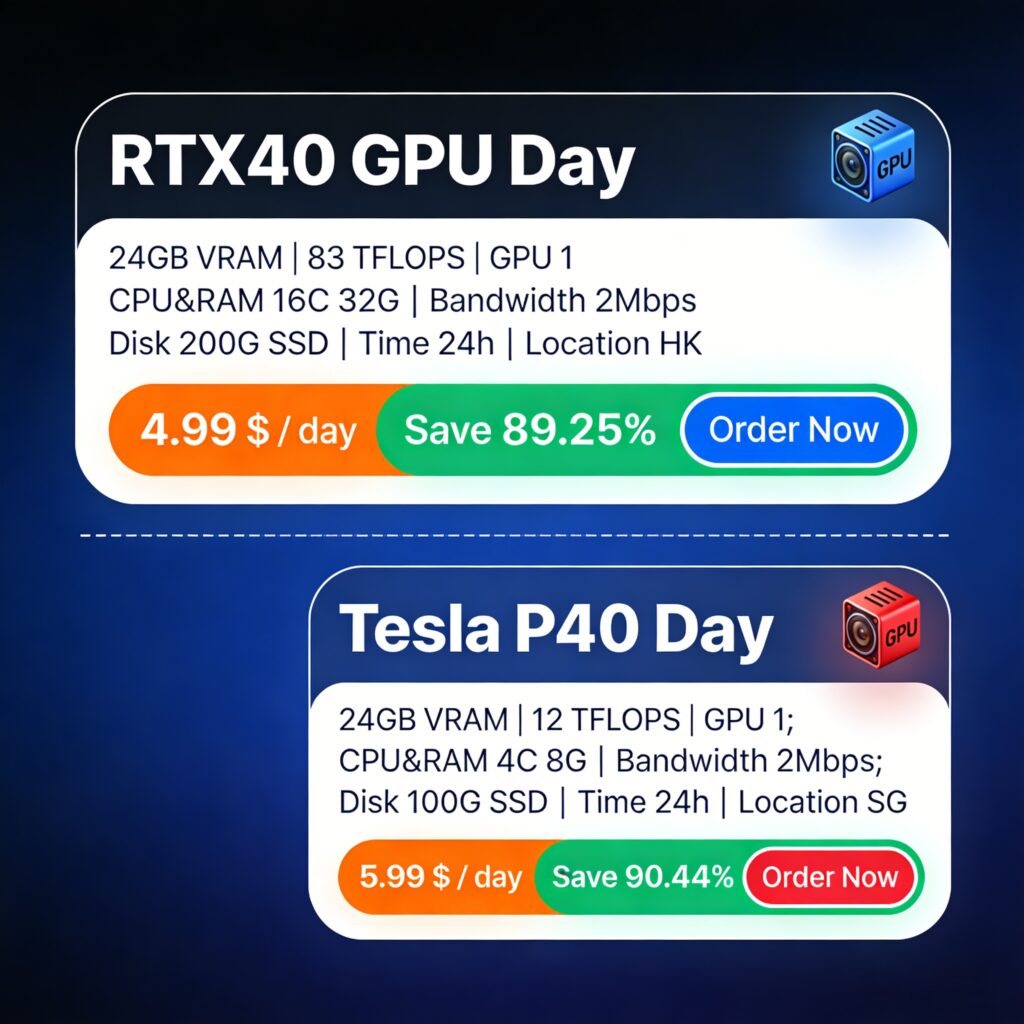
GPU Special Offers

RTX40 & P40 GPU Server

Light Server promotion:

ulhost

Cloud Server promotion:

Affordable CDN

ucdn

2025 Special Offers

annual vps

Copyright © 2024 SurferCloud All Rights Reserved. Terms of Service. Sitemap.