How Offshore VPS Hosting Protects Your Online
In 2025, the internet has become more regulated than ev...








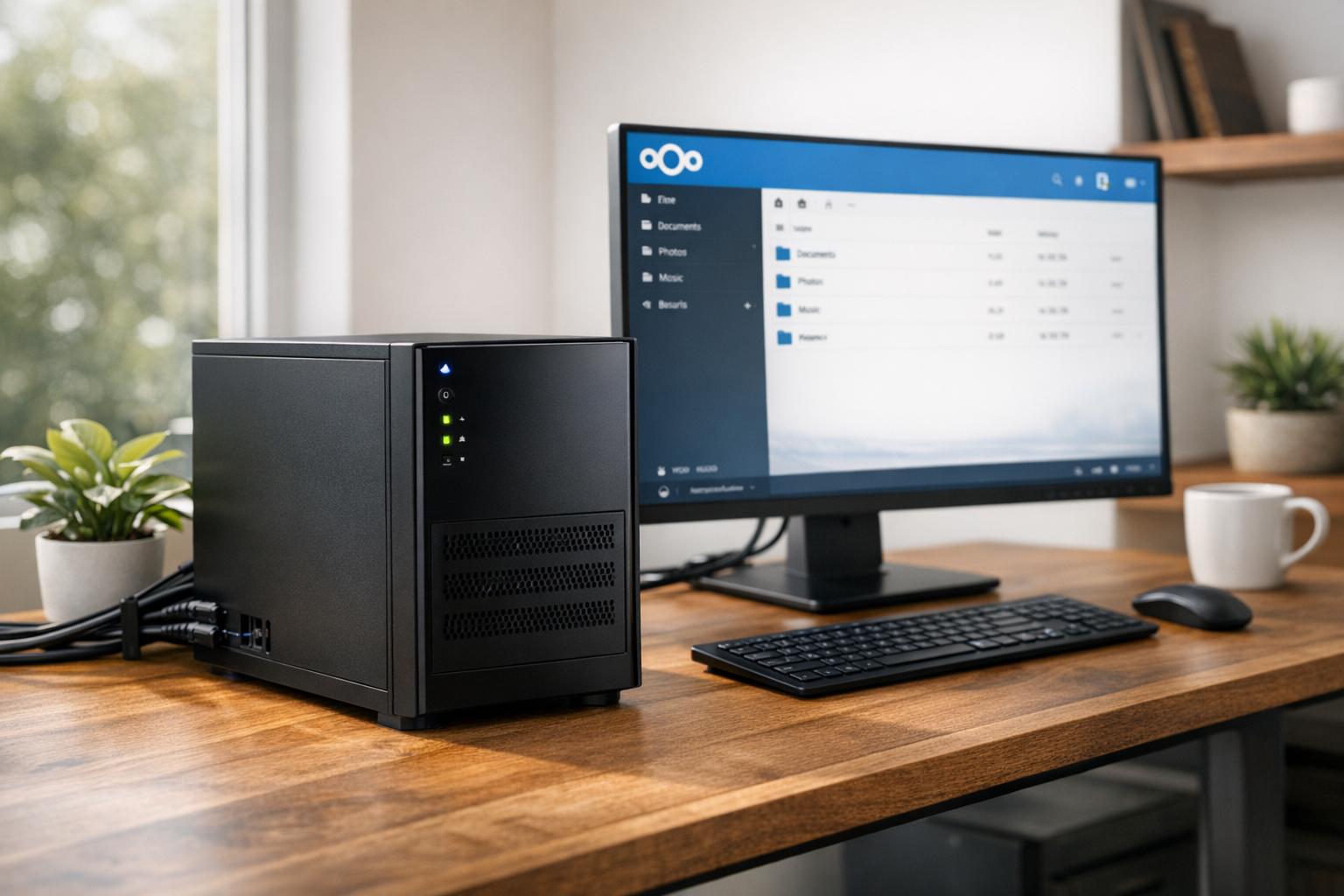
As organizations and individuals increasingly prioritize data privacy, control, and scalability, many are exploring self-hosting solutions for their cloud storage needs. Among the leading platforms in this space is NextCloud, an open-source application that transforms your server into a powerful, secure, and fully customizable cloud environment. Whether you’re a small business owner striving to enhance operational efficiency or a developer seeking more control over your infrastructure, this guide will walk you through the process of deploying your very own NextCloud server from scratch using Debian 13.
This tutorial is not a one-click method but a detailed, hands-on experience designed to help you understand the mechanics of building a scalable and secure cloud server. By following this guide, you will not only create a functional server but also gain valuable insights into Linux-based server management.

Before diving into the technical steps, it's essential to understand why NextCloud is such a compelling choice for self-hosting.
Key Features of NextCloud:
For this tutorial, we’ll be using Debian 13, a robust and reliable Linux distribution ideal for server environments.
Before you begin setting up your server, ensure you have the following:
A record in your DNS provider to point your domain/subdomain to your server's IP address.sudo apt update && sudo apt upgrade.MariaDB is the preferred database for NextCloud due to its reliability and open-source nature.
sudo apt install mariadb-server mariadb-client. sudo mysql_secure_installation.
CREATE DATABASE nextcloud; CREATE USER 'nextcloud'@'localhost' IDENTIFIED BY 'your_password'; GRANT ALL PRIVILEGES ON nextcloud.* TO 'nextcloud'@'localhost'; FLUSH PRIVILEGES; Apache is a widely-used web server that's compatible with NextCloud.
sudo apt install apache2 php libapache2-mod-php php-mysql php-curl php-json php-mbstring php-intl php-imagick php-xml php-zip sudo a2enmod dir env headers mime rewrite ssl Edit the PHP configuration file (/etc/php/8.4/apache2/php.ini) to optimize for NextCloud:
memory_limit = 512Mupload_max_filesize = 200Mpost_max_size = 200Mmax_execution_time = 360date.timezone = America/New_York.wget https://download.nextcloud.com/server/releases/latest.zip unzip latest.zip sudo mv nextcloud /var/www/ sudo chown -R www-data:www-data /var/www/nextcloud sudo chmod -R 750 /var/www/nextcloud /etc/apache2/sites-available/nextcloud.conf):
<VirtualHost *:80> ServerName yourdomain.com DocumentRoot /var/www/nextcloud <Directory /var/www/nextcloud/> Require all granted AllowOverride All </Directory> </VirtualHost> sudo a2ensite nextcloud.conf sudo systemctl reload apache2 http://yourdomain.com) to access the NextCloud setup wizard.sudo apt install certbot python3-certbot-apache sudo certbot --apache -d yourdomain.com Setting up NextCloud on Debian 13 empowers you with a secure, private, and cost-effective cloud solution tailored to your exact needs. While it requires some initial effort to configure, the long-term benefits - data sovereignty, scalability, and the ability to integrate with your existing workflows - make it a worthwhile investment.
Whether you’re a developer seeking deeper technical control or an IT manager looking for a scalable solution, NextCloud offers a flexible framework that grows with your needs. Start experimenting, explore its features, and enjoy the freedom of owning your cloud.
Source: "Self-Host Nextcloud on Debian: The Ultimate Step-by-Step Build Guide" - Learn Linux TV, YouTube, Nov 24, 2025 - https://www.youtube.com/watch?v=TGsGalCOl2k