SurferCloud Blog SurferCloud Blog
  • HOME
  • NEWS
    • Latest Events
    • Product Updates
    • Service announcement
  • TUTORIAL
  • COMPARISONS
  • INDUSTRY INFORMATION
  • Telegram Group
  • Affiliates
SurferCloud Blog SurferCloud Blog
  • HOME
  • NEWS
    • Latest Events
    • Product Updates
    • Service announcement
  • TUTORIAL
  • COMPARISONS
  • INDUSTRY INFORMATION
  • Telegram Group
  • Affiliates
  • banner shape
  • banner shape
  • banner shape
  • banner shape
  • plus icon
  • plus icon

Complete Guide to VPS Setup and SSH Access

December 26, 2025
7 minutes
INDUSTRY INFORMATION
20 Views

In today’s interconnected world, businesses and developers alike need robust, scalable, and customizable hosting solutions to power their applications. Virtual Private Servers (VPS) have become a go-to choice for professionals who require more control, flexibility, and performance than shared hosting can offer. In this article, we’ll walk through the fundamentals of VPS, its benefits, and how to set it up with SSH access, providing a transformative step-by-step guide for tech-savvy individuals and decision-makers.

Whether you’re a developer building AI models, an IT manager optimizing resources, or a startup seeking secure hosting for SaaS applications, VPS offers a tailored solution to meet your needs. Let’s dive into the details.

What is a VPS?

A Virtual Private Server (VPS) is essentially a virtualized instance on a physical server that mimics the performance of a dedicated server. Imagine a massive data center housing powerful servers. A VPS acts like your private slice of that server, complete with its own allocated RAM, CPU, and storage, operating independently of other VPS instances hosted on the same physical machine.

Unlike shared hosting, where resources are distributed among multiple users, a VPS gives you complete control over your operating environment. You can configure it to run custom applications, change software versions, and even deploy machine learning models - all without restrictions.

Key Benefits of a VPS:

  • Customization: Full control over the server environment. Install any operating system, software, or runtime environment as needed.
  • Scalability: Easily scale your resources to meet growing traffic or application demands.
  • Performance: Dedicated resources ensure stable and reliable performance, unaffected by other users.
  • Cost-Effectiveness: Offers a middle ground between shared hosting and expensive dedicated servers.
  • Security: More privacy and control compared to shared hosting, reducing the risk of data breaches.

When Do You Need a VPS?

A VPS is ideal for scenarios where:

  • You’re running advanced frameworks like Laravel or deploying AI models using Python.
  • You want to host custom apps or applications requiring specific configurations.
  • Shared hosting lacks the flexibility or performance for your use case.
  • You’re developing and testing plugins, themes, or custom websites.

For basic use cases like WordPress websites, shared hosting may suffice. However, for more complex tasks like running resource-intensive applications or machine learning models, a VPS becomes indispensable.

sbb-itb-55b6316

Step-by-Step Guide: Setting Up a VPS and Accessing It via SSH

Setting up a VPS might sound daunting, but with the right guidance, it can be a straightforward process. Below is a beginner-friendly step-by-step guide.

Step 1: Select Your VPS Provider

There are several reputable VPS hosting providers available, including DigitalOcean, AWS, and Azure. Choose a provider based on your specific requirements, such as:

  • Budget: Look for affordable plans that allow upgrades as needed.
  • Performance Needs: Depending on your app, select the appropriate CPU, RAM, and storage.
  • Geographic Location: Select a data center closer to your user base to reduce latency.

Tip: University students may have access to free VPS credits through programs like GitHub Student Developer Pack - research this option if you qualify.

Step 2: Create a VPS Instance

Once you’ve chosen your provider, create a new VPS instance. Most providers will require you to configure the following:

  1. Region and Data Center: Select a location closer to your primary user base.
  2. Operating System: Linux distributions like Ubuntu, CentOS, or Debian are commonly used for VPS setups due to their stability and support for server environments.
  3. Server Size: For basic applications, start with 1GB RAM, 1 vCPU, and 25GB SSD.
  4. Optional Add-Ons: Add monitoring tools or backups if necessary, based on your workflow.

Step 3: Generate an SSH Key Pair

SSH (Secure Shell) is a protocol used to securely access your VPS. To set up SSH authentication, you need to generate an SSH key pair - a combination of a private key (your "key") and a public key (your "lock").

How to Generate SSH Keys:

  • On Linux/Mac:
    ssh-keygen -t rsa -b 4096 -C "your_email@example.com" 
  • On Windows: Use PowerShell or Git Bash and run the same command.
  • Follow the prompts to:
    • Choose a file location for the keys.
    • Set a passphrase for added security.

After generation:

  • The public key (e.g., id_rsa.pub) is shared with your VPS provider during setup.
  • The private key (e.g., id_rsa) stays securely on your local machine. Never share it.

Step 4: Add Your Public Key to the VPS

When creating the VPS, you’ll be prompted to upload your public SSH key. This key will allow you to securely access your VPS without using a traditional username/password.

  • Copy the content of your public key (e.g., id_rsa.pub) using:
    cat ~/.ssh/id_rsa.pub 
  • Paste it into the SSH key field. Most providers will also allow you to give it a nickname for future reference.

Step 5: Access Your VPS via SSH

Once your VPS instance is active, access it securely using the SSH protocol. Here’s how:

  1. Note down the IP address of your VPS from the hosting dashboard.
  2. Open your terminal or PowerShell.
  3. Use the SSH command to connect:
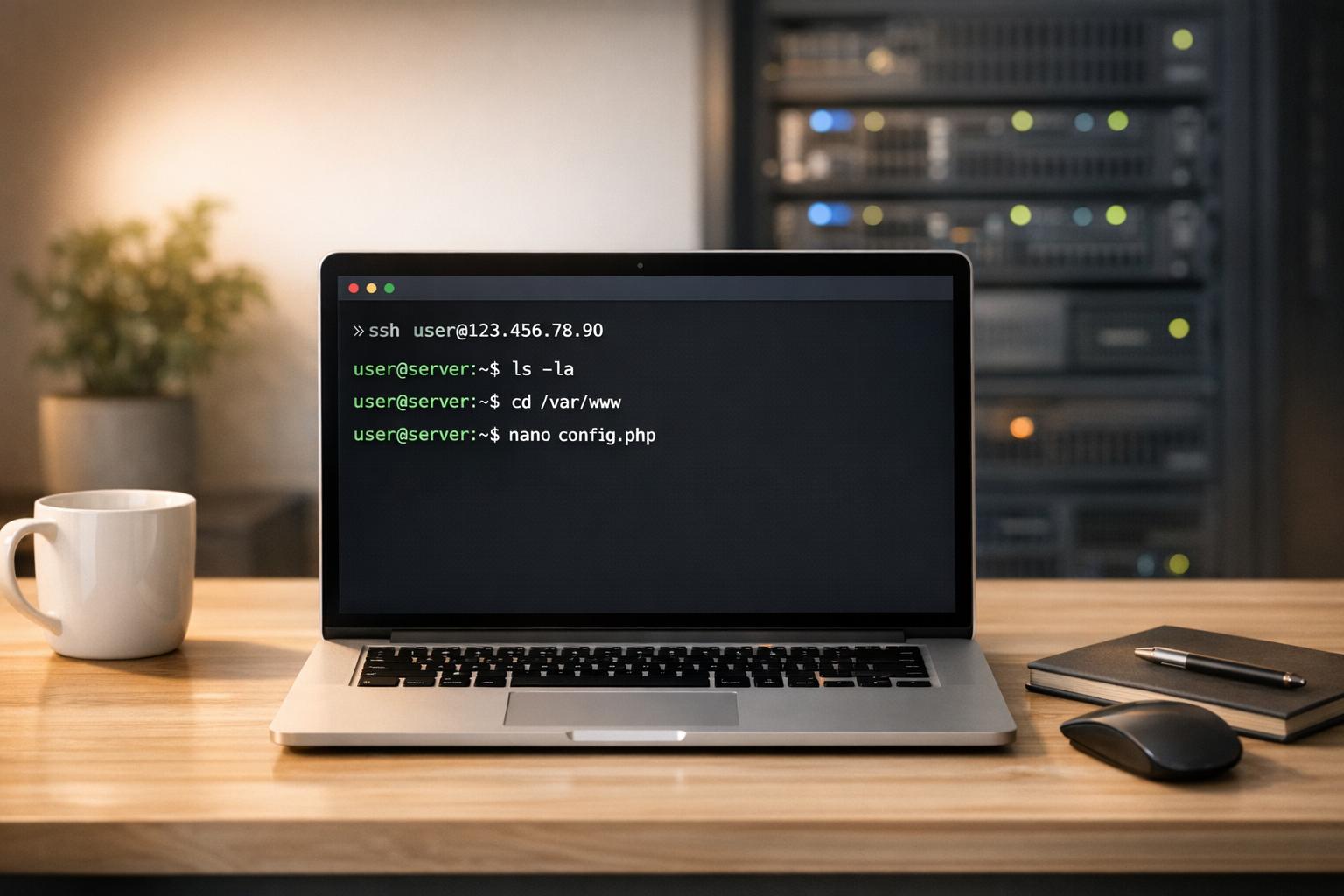
    ssh -i /path/to/private_key root@your_vps_ip 

    Replace /path/to/private_key with the location of your private key and your_vps_ip with your VPS’s IP address.

  4. Enter the passphrase for your private key when prompted.

If successful, you’ll see a welcome message confirming access to your VPS.

Step 6: Secure Your VPS

After accessing your VPS, it’s essential to secure it:

  • Update the Operating System: Run updates to patch security vulnerabilities.
    sudo apt update && sudo apt upgrade 
  • Disable Password Login: To prevent unauthorized access, configure the server to only allow SSH key authentication.
  • Set Up a Firewall: Use tools like UFW to restrict access to specific ports.

Step 7: Install and Configure Necessary Software

Depending on your application, you may need to install additional software on your VPS. For example:

  • A web server like NGINX or Apache.
  • MySQL for databases.
  • PHP or other frameworks for backend logic.

This configuration is often referred to as the LAMP/LEMP stack:

  • L: Linux
  • A/E: Apache or NGINX (pronounced "Engine-X")
  • M: MySQL
  • P: PHP

Key Takeaways

  • VPS is a powerful hosting solution for developers, businesses, and startups requiring flexibility, scalability, and security.
  • SSH access ensures secure remote connections to your server, using a key-based authentication method.
  • Generating and managing SSH keys is a foundational skill for VPS management.
  • Select the right VPS provider based on your budget, performance needs, and geographic requirements.
  • Secure your VPS immediately after setup by disabling password logins and enabling a firewall.
  • Customizability allows you to install and configure software to match your specific project requirements.

Conclusion

Setting up a VPS and accessing it via SSH might seem technical at first, but it provides unparalleled control and security over your hosting environment. Whether you’re deploying machine learning models, hosting web applications, or exploring advanced backend frameworks, VPS offers a scalable and reliable solution that grows with your needs.

By following this guide, you’ve taken the first steps toward mastering VPS hosting and building a robust infrastructure for your projects. Remember, while the initial setup requires attention to detail, the long-term benefits of performance, flexibility, and security make it a worthwhile investment for tech professionals and businesses alike.

Source: "Cloud Computing Basics + VPS Setup Explained | Lecture 42" - Next Age Solutions, YouTube, Dec 4, 2025 - https://www.youtube.com/watch?v=COpdXwuMuLw

Related Blog Posts

  • Cloud Infrastructure Cost Optimization: 12 Proven Tips
  • Complete Guide to Data Centers for AI: Energy & Costs
  • Cloud Cost Calculator for Smart Budgeting
  • Complete Guide to Self-Hosting Nextcloud on Debian

Related Post

4 minutes INDUSTRY INFORMATION

Choosing the Best Password Manager for Your S

In today's digital age, managing your passwords securel...

4 minutes INDUSTRY INFORMATION

Can I Host Multiple Websites on a Single Wind

The Real Power Behind Windows VPS Hosting If you're ...

4 minutes INDUSTRY INFORMATION

London VPS Hosting: Why Choose a Cloud Server

For businesses and developers looking for high-performa...

Leave a Comment Cancel reply

Light Server promotion:

ulhost

Cloud Server promotion:

Affordable CDN

ucdn

2025 Special Offers

annual vps

Copyright © 2024 SurferCloud All Rights Reserved. Terms of Service. Sitemap.