How to Check Directory Size in Linux: A Compr
Linux provides robust tools for managing files and dire...








Most AI assistants store your data on official servers, charge per message, and go offline as soon as you close the browser. OpenClaw works in a completely different way — it runs on your own cloud server, can connect to platforms like Telegram, WhatsApp, Slack, and Discord, and stays online 24/7 without interruption.
Now, SurferCloud provides a one-click OpenClaw template (CentOS Stream 9 64bit) on both Simple Application Server (ULightHost) and Elastic Compute (UHost) in its Japan, Singapore, Los Angeles, and Washington data centers.
With this template, OpenClaw can be deployed in just a few minutes.
In this guide, we will walk through the complete installation step-by-step.
OpenClaw is an open-source, self-hosted AI assistant.
You can connect it to:
Once connected, it can run as your personal AI assistant across multiple chat platforms.
Advantages of using OpenClaw + Cloud Server:
✔ All conversation data stays on your own server
✔ No per-message fees — only Cloud Server cost
✔ Runs online 24/7
✔ Freedom to choose any AI model
✔ Can connect to multiple chat platforms
Perfect for:
Before starting, make sure you have:
You can purchase the server either from our current promotions page or directly from the console.
Simple Application Server (ULightHost) promo page: https://www.surfercloud.com/promos/ulighthost
Elastic Compute (UHost) promo page: https://www.surfercloud.com/promos/uhost
Simple Application Server (ULightHost) console purchase: https://console.surfercloud.com/light-server/create/
Elastic Compute (UHost) console purchase: https://console.surfercloud.com/uhost/uhost/create
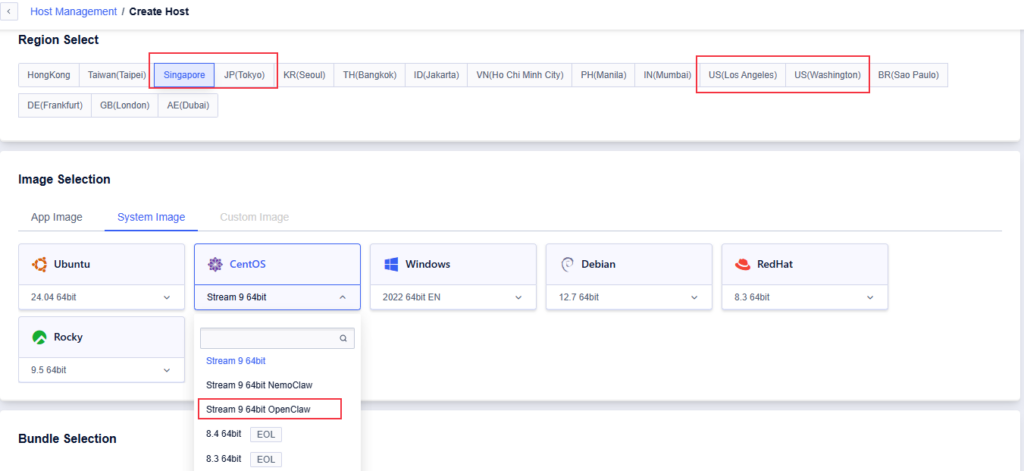
⚠️ Important: You must select one of the following data center locations:
Other regions do not include the preinstalled OpenClaw image. During system selection, make sure to choose the preinstalled image: CentOS Stream 9 64bit – OpenClaw.
After the server deployment is complete, you can initialize OpenClaw using the CLI tool.
This method works on most Cloud Server environments and is recommended for self-hosted setups.
Login to your Cloud Server via SSH and check the OpenClaw version:
clawdbot --versionIf installed correctly, the version number will be displayed.
Run the onboarding command:
# initialize configuration
openclaw onboard --install-daemon
This command will:
During the setup process, you will be asked to choose an AI provider.
Example options:
Select the provider you want to use.
Paste your API key when prompted.
Get your key from:
Example:
Enter API Key:
sk-xxxxxxxxxxxxxxxxTelegram is the easiest platform to integrate first.
Search for:
@BotFather
Start the chat and send:
/newbot
Follow the instructions to create a bot.
You will receive:
Bot Token
Go to OpenClaw dashboard:
Integrations
→ Telegram
→ Paste Bot Token
Open Telegram
Search for your bot
Send a message
Your AI assistant should reply immediately.
Your AI assistant is now:
Supported models:
You can continue connecting:
This allows you to build your own fully automated AI system.
OpenClaw + Cloud Server is ideal for:
If you want a private, always-online, multi-platform AI assistant, self-hosting OpenClaw on a cloud server is one of the best solutions.